

How To Install IPTV
Select your device below to open a clear, step-by-step installation guide.
Before you start
We sell the subscription only. Our app V12Mate is free on Android & Firestick, and you can use any player you prefer. Some third-party players may require their own license after the trial.
It works like a SIM card — your subscription is the SIM, and the player app is the phone you use it on.
Need help? support@bestiptvprovider.ca
Fire TV Stick Setup Guide
🔥 Prefer Hot Player on your Fire TV Stick?
Hot Player is also available on Fire TV Stick. Get a 1-year license, enter your device's MAC address, and we activate it instantly. Install steps, MAC activation & secure checkout are all on our page (no channels included — you use your own subscription).
Get Hot Player · 1-Year License →Choose Your Learning Style


Android TV Setup Guide
🔥 Prefer Hot Player on your Android TV?
Hot Player is also available on Android TV. Get a 1-year license, enter your device's MAC address, and we activate it instantly. Install steps, MAC activation & secure checkout are all on our page (no channels included — you use your own subscription).
Get Hot Player · 1-Year License →Method 1: Using Downloader App
- Search for Downloader in the Play Store and tap Install

- Press Allow when prompted

- Click OK to confirm

- Downloader is ready — now install V12Mate

- Enter the Downloader code for V12Mate: 2494311 → press GO

- Accept Privacy Policy → Install → confirm again if asked


- Press Install → wait until installed

- When complete, press OPENVery Important: If you already have Tivimate installed, uninstall it first.

- Press Add playlist

- Press V12MATEIf you only see "Cancel", click this link to fix it 👉 CLICK HERE

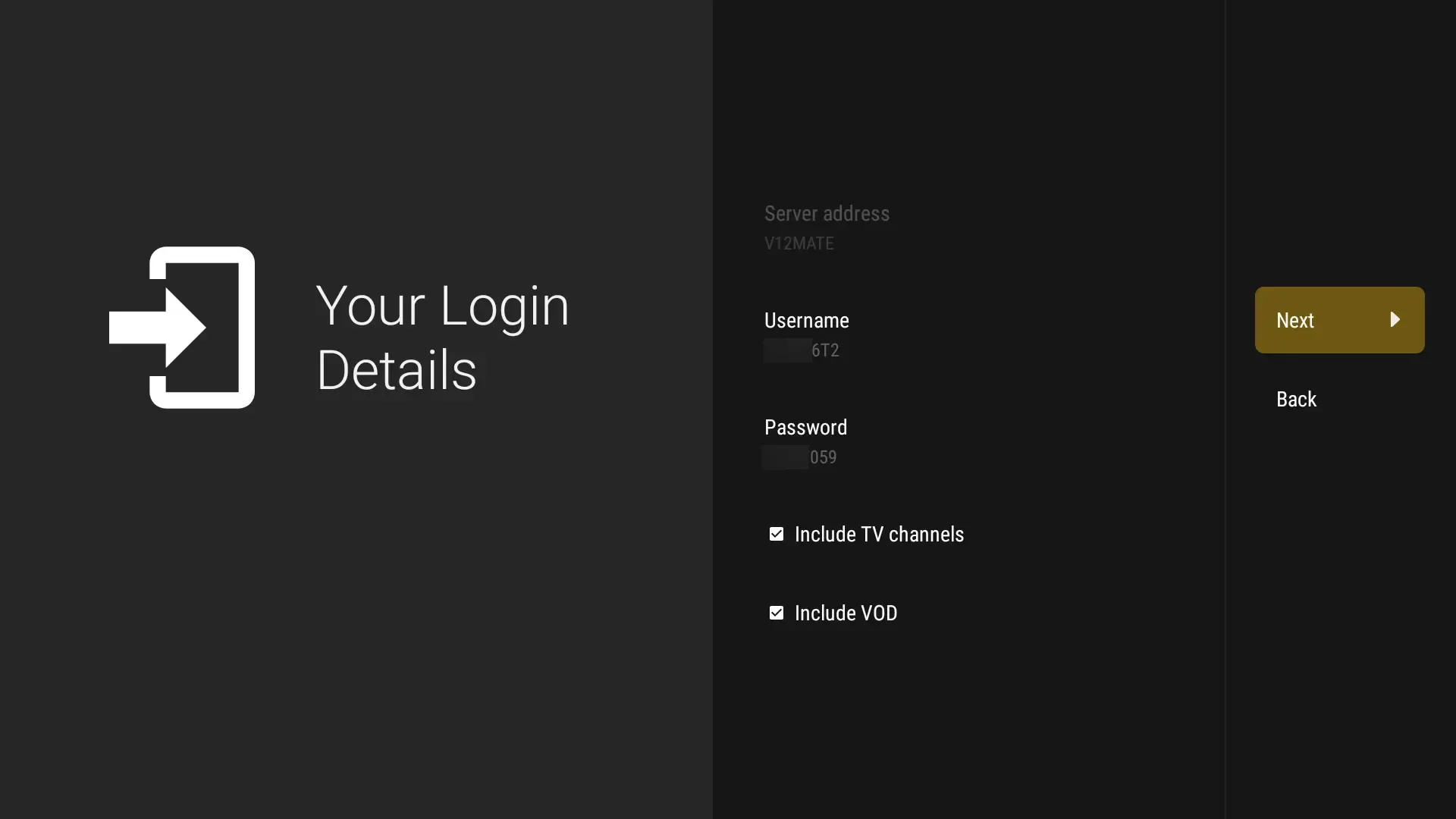
- Enter your Credentials — (No server URL is needed since it's our player.)

- Press Next, keep VOD and TV channels selected
- Wait for it to process (about 1 minute)

- Press Done, wait a few seconds. You're ready to watch!If No Channels Load And Content Count Doesn't Show, Your Login Details Are Wrong. Go to Settings → Playlists → V12Mate → Xtream Codes Parameters and double-check your credentials.

Method 2: Google Play Store (If V12Mate doesn't work)
- Open Google Play Store on your Android TVVery Important: VOD on TiviMate only works with their Premium. Our service already has VOD built in.
- Search for TiviMate IPTV Player and click Install
- Open TiviMate, select Add Playlist, choose Xtream Codes
- Enter your Best IPTV Provider credentials (Server URL, Username, Password)
Frequently Asked Questions
What is V12Mate and how does it work?▸
Is V12Mate compatible with my Android TV device?▸
Can I use V12Mate with any IPTV provider?▸
Is TiviMate owned by Best IPTV Provider Canada?▸
iPhone & iPad Setup Guide
Before you continue
This guide uses a third-party app that we don't own, sell, or manage. It may need its own license or a premium upgrade to unlock all features, and any such purchase is handled by that app — not by us.
These steps are provided only to help you set it up with your subscription.
Method 1: iMPlayer Setup (Recommended)
- Download iMPlayer - IPTV Player from App Store:
Download from App Store
- Open the app and click on "Add a Playlist"
- Select playlist type "XC API"
- Fill in your details:
• Playlist Name: Choose any name
• Portal URL: Enter the server URL we sent you by email
• Username & Password: Use the credentials provided in the email - Click "Add Playlist", wait until contents finish downloading and enjoy!
Method 2: Smarters Player Lite Setup
- Open app and tap Add User, select Login with Xtream Codes API
- Use the login details provided to you after subscribing. Click "ADD USER" to continue
- Wait a few seconds for the app to process your details
- Tap the "Live TV" icon to start watching
- Select the channel category you want and tap a channel name to play
Frequently Asked Questions
Which app is best for iOS devices?▸
Do I need to jailbreak my Apple TV?▸
Can I use these apps on Apple TV?▸
Why is EPG not loading?▸
Windows & Mac Setup Guide
Method 1: IPTV Smarters Pro Setup
- Open a browser and type "IPTV Smarters Pro" into the search bar
- Go to the official website: https://www.iptvsmarters.com
- Click on the "Downloads" section in the website menu
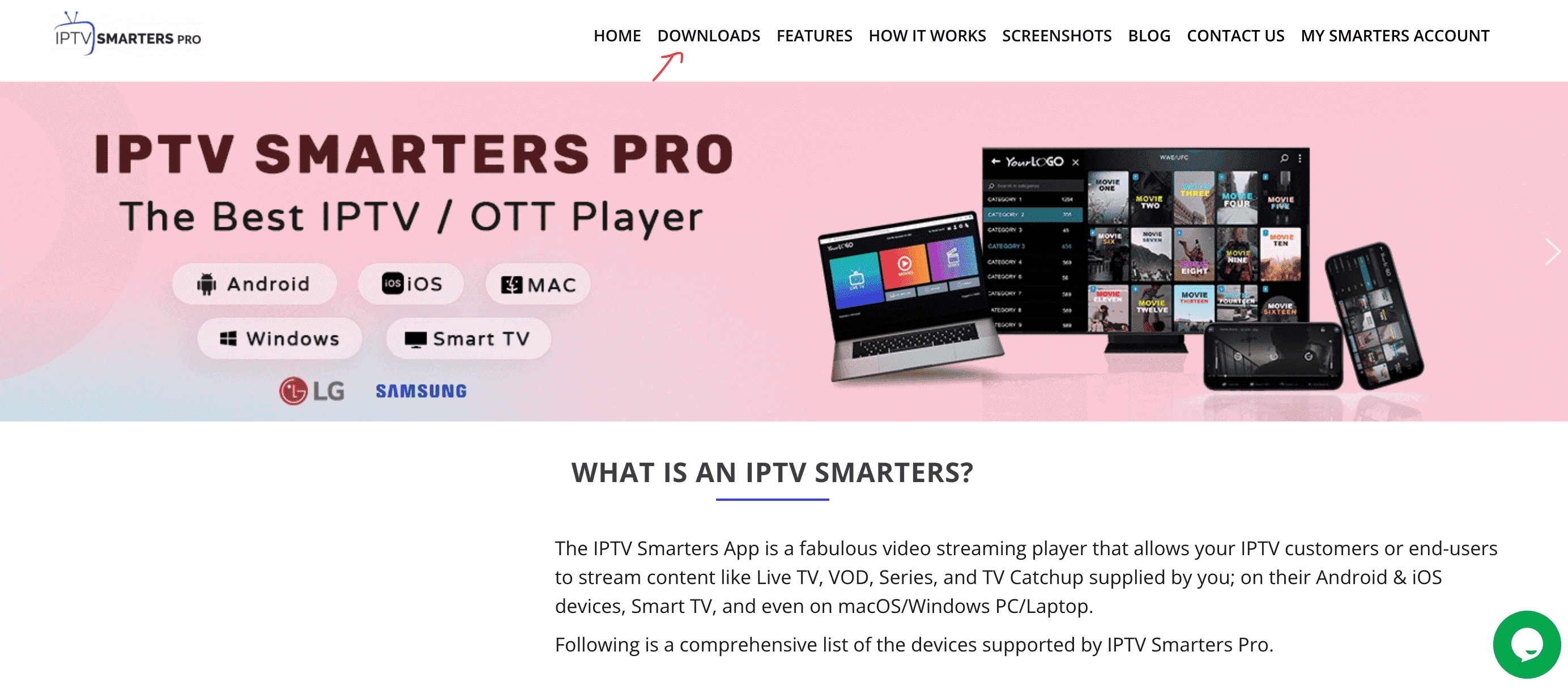
- Download the Windows or Mac version

- Once downloaded, open the installer by clicking on the downloaded file
- If Windows asks for permission, click "Yes" to allow the app to install
- The installation will begin — typically takes under 2 minutes
- Once installed, launch the app. Click Add New User, then choose "Login with Xtream Codes API"
- Enter your account details: Username, Password, and Portal URL
- That's it! You're ready to start streaming.
Method 2: MyIPTV Player (Windows 10/11)
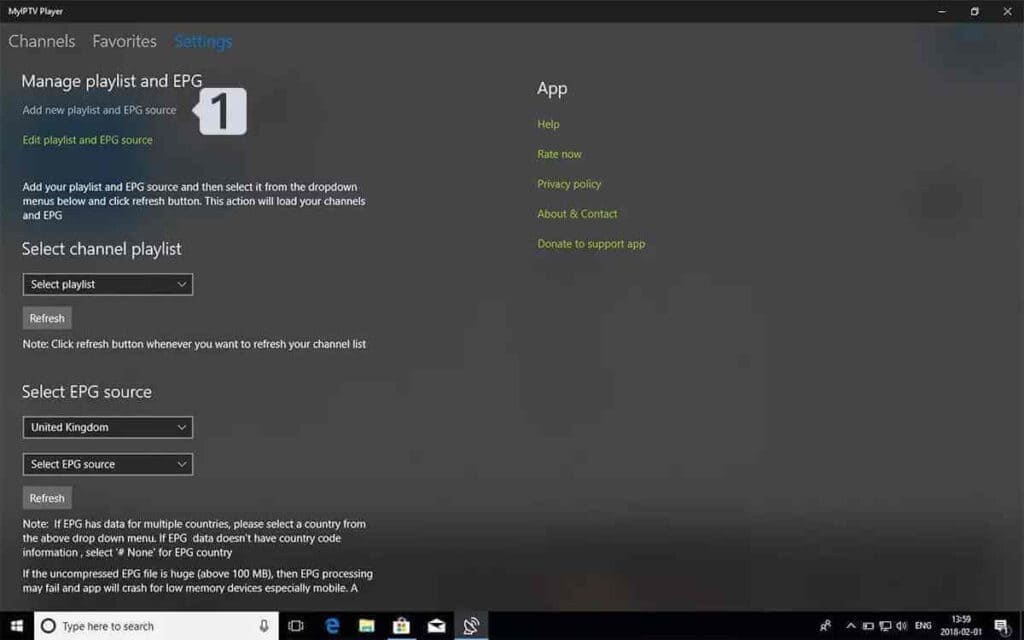
- Go to the Settings tab, then click "Add new playlist and EPG source"
- Add your M3U playlist:
• Name: Give your playlist a name
• URL: Paste the M3U link you received from your provider
• Click Add remote list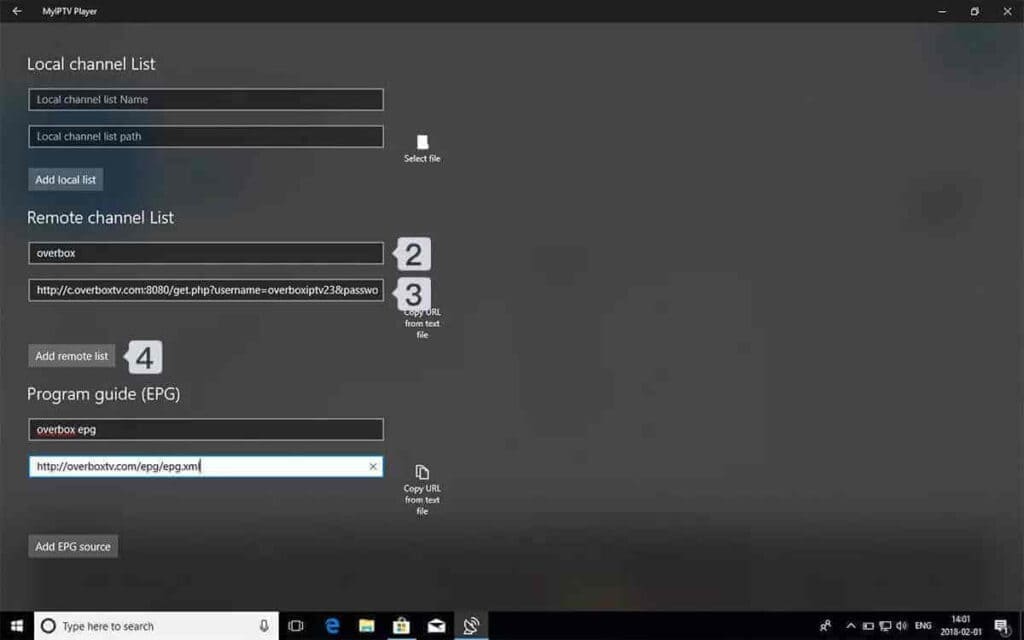
- Go back to Settings and choose your playlist from the Select Channel Playlist dropdown

- Done! Go to the Channels tab, choose your country, and start watching
Frequently Asked Questions
Which app works best on Windows/Mac?▸
Can I use VLC Player for IPTV?▸
System requirements for IPTV apps?▸
Can I record shows on PC/Mac?▸
Android Phone & Tablet Setup Guide
Before you continue
This guide uses a third-party app that we don't own, sell, or manage. It may need its own license or a premium upgrade to unlock all features, and any such purchase is handled by that app — not by us.
These steps are provided only to help you set it up with your subscription.
Method 1: iMPlayer Setup (Recommended)
- Download iMPlayer - IPTV Player from Google Play Store:
Download from Google Play Store
- Open the app and click on "Add a Playlist"
- Select playlist type "XC API"
- Fill in your details:
• Playlist Name: Choose any name
• Portal URL: Enter the server URL we sent you by email
• Username & Password: Use the credentials provided in the email - Click "Add Playlist", wait until contents finish downloading and enjoy!
Method 2: TiviMate Mobile Setup
- Open Google Play Store and search for TiviMate IPTV PlayerVery Important: VOD on TiviMate only works with their Premium. Our service already has VOD built in.

- Tap Install and wait for completion
- Open TiviMate, tap Add Playlist
- Select Xtream Codes or M3U Playlist based on what your provider gave you
- Enter credentials:
• Server: Your provider's server URL
• Username: Your username
• Password: Your password
Then tap Next - Wait for channels to load, then start watching!
Frequently Asked Questions
Does TiviMate include channels or an IPTV service?▸
Why do I see "invalid" when logging into TiviMate?▸
Best practices to reduce buffering on mobile?▸
Can I cast to TV from my phone?▸
What internet speed is recommended?▸
Roku Device Setup Guide
Before you continue
This guide uses a third-party app that we don't own, sell, or manage. It may need its own license or a premium upgrade to unlock all features, and any such purchase is handled by that app — not by us.
These steps are provided only to help you set it up with your subscription.
🔥 Get your Hot Player license (1 Year)
Hot Player needs a one-time activation. Get your 1-year license from us for CA$14.99 — enter the MAC address shown in the app and your email, and we activate it instantly. The app includes no channels — you use your own IPTV subscription.
Get Hot Player · 1-Year License →Step 1: Install Hot Player
- On your Roku device, open the Roku Channel Store
- In the search bar, type "Hot IPTV" or "Hot Player"

- Select Hot Player from the search results
- Click "Add Channel" to install the app
Step 2: Get Your MAC Address
- Open the Hot Player app on your Roku device
- You will see your MAC Address displayed on the screen. Write this down or take a photo

Step 3: Activate Hot Player License
-
Hot Player needs a one-time activation. Get your license now:👉 sekonlineservices.com/hotplayer
Enter the MAC Address from the previous step, pay securely, and we activate it instantly.
Step 4: Configure Your Playlist Online
- On your phone or computer, visit: https://hotplayer.app
- Click on "Upload List" in the menu

- Enter the MAC Address from your Roku device, then click "Next"

- Change Source to "Xtream Code"

- Fill in your IPTV playlist details:
• Playlist Name: Any name (e.g. "My IPTV")
• Host: Your Server Address
• Username: Your IPTV username
• Password: Your IPTV password
Then click "Save" - Return to your Roku device and refresh or restart Hot Player
- Your IPTV channels should now load. You're ready to start watching!
Frequently Asked Questions
Where do I find the MAC Address on my Roku?▸
How much does Hot Player cost?▸
Can I use multiple playlists?▸
Why are my channels not loading?▸
Smart TV Setup Guide — All Brands
Before you continue
This guide uses a third-party app that we don't own, sell, or manage. It may need its own license or a premium upgrade to unlock all features, and any such purchase is handled by that app — not by us.
These steps are provided only to help you set it up with your subscription.
🔥 Get your Hot Player license (1 Year)
Hot Player needs a one-time activation. Get your 1-year license from us for CA$14.99 — enter the MAC address shown in the app and your email, and we activate it instantly.
Get Hot Player · 1-Year License →Step 1: Install Hot Player
- On your Smart TV, open your App Store (LG Content Store, Samsung Apps, etc.)
- In the search bar, type "Hot IPTV" or "Hot Player"
- Select Hot Player from the search results
- Click "Install" or "Download"
Step 2: Get Your MAC Address
- Open the Hot Player app on your Smart TV
- Note the MAC Address displayed on screen — you'll need it in the next step
Step 3: Activate & Configure
- Get your license at: sekonlineservices.com/hotplayer
Enter your MAC Address, pay securely, activated instantly. - On your phone or computer, visit https://hotplayer.app and click "Upload List"
- Enter your MAC address and click "Next"
- Change Source to "Xtream Code"
- Enter your IPTV details (Playlist Name, Host/Server, Username, Password) then click "Save"
- Restart Hot Player on your Smart TV. Your channels will now load — you're ready to watch!
Frequently Asked Questions
Which Smart TV brands support Hot Player?▸
How much does Hot Player cost?▸
Why are my channels not loading?▸
Can I use multiple playlists?▸
BuzzTV Setup Guide
Method 1: XC API Login (Recommended)
- From your BuzzTV home screen, navigate to Server Settings

- Select XC API Login → Add XC API Login

- Configure your connection:
• Portal Name: Any name (e.g. "My IPTV")
• Portal URL: Enter your server URL
• User name: Your IPTV username
• Password: Your IPTV password
- Press "Connect" or "Save" to establish the connection
- Return to home screen and select Live TV to start watching!
Frequently Asked Questions
What's the difference between XC API Login and MAC Server?▸
Why won't my channels load?▸
Can I use multiple IPTV services on BuzzTV?▸
Formuler/Dreamlink Setup Guide
Formuler Z: MyTVOnline 2 & 3
- Open MyTVOnline 2 or 3 from your Formuler home screen
- Navigate to Menu → Connections → Add Portal
- Configure your connection:
• Portal Name: Any name (e.g. "My IPTV")
• Portal URL: Your server URL
• Login Required: Enable this option
• Username: Your IPTV username
• Password: Your IPTV password - Press "Connect" to establish the connection
- Your channels should now load and you're ready to watch!
Dreamlink: DOL2 App
- Open DOL2 App from your Dreamlink home screen

- Go to Menu → Portals → Edit Portal
- Enter your portal configuration:
• Portal Title: Any name
• Portal URL: Your IPTV server URL
• Login Required: Yes
• Username/Password: Your credentials - Save the configuration and restart the app to connect
Frequently Asked Questions
What's the difference between MyTVOnline 1 and 2?▸
Do I need to register MAC address for Formuler?▸
Why won't my channels load?▸
Troubleshooting Tips
- Check your internet connection. A stable connection of at least 15–20 Mbps is recommended for smooth HD streaming.
- Make sure your Xtream Codes (Credentials) are entered correctly. These details are case-sensitive.
- Update your IPTV player app to the latest version to avoid playback and loading issues.
- Restart your device and also reboot your router/modem.
- If you are using a VPN, try switching to another server or temporarily disabling it to test.
- Clear the cache of your IPTV player app, then reopen it and test again.
- Some internet providers may restrict IPTV traffic. If you suspect this, using a VPN can often help improve access.